
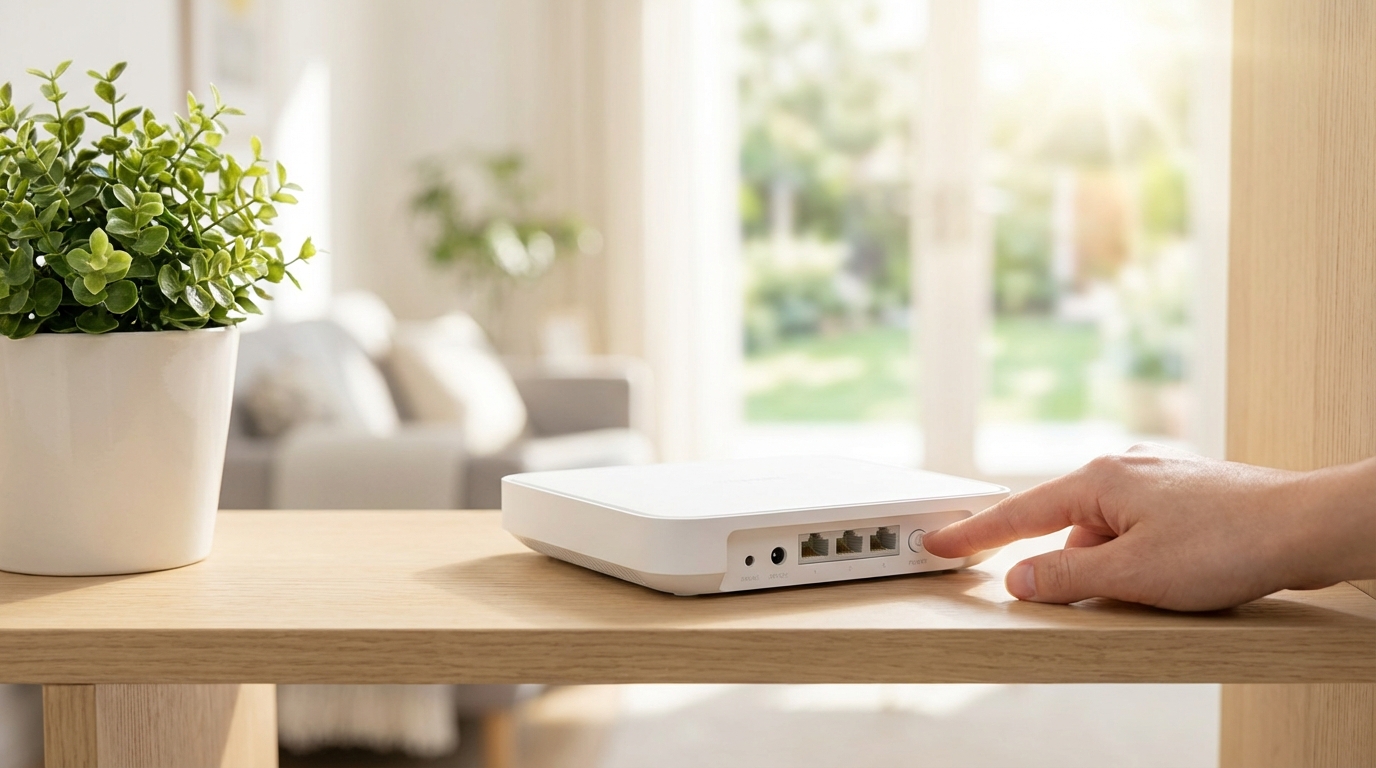
Many internet problems feel mysterious, especially when a connection slows down or drops without warning. One of the most common pieces of advice in tech support is to restart the router, and it often works better than expected. This simple action can clear up a wide range of issues, from slow speeds to devices that refuse to connect. Understanding why a restart helps makes it easier to know when it is the right step and what problems it can realistically fix.
Routers sit at the center of most home and small office networks, quietly managing traffic all day long. Over time, small errors and clutter can build up inside the device, even if nothing seems obviously wrong. A restart gives the router a fresh start, much like rebooting a computer that has been running for days. The sections below explain how routers work, what can go wrong, and why turning one off and on again is often effective.
How Home Networking Works at a Basic Level
To understand why restarting a router helps, it is useful to know what the router is doing every second it is powered on. A home network is not just a simple wire carrying data back and forth. It is a system that tracks devices, manages signals, and makes quick decisions about where information should go. The router is the traffic manager for all of this activity.
The Role of the Router
A router connects local devices, like phones and laptops, to the wider internet. It assigns local addresses to each device and keeps track of which data belongs to which device. Every time a web page loads or a video streams, the router is handling many small requests at once. This constant workload means the router is always processing information, even when the network seems quiet.
Most home routers also provide wireless access through Wi-Fi. This adds another layer of work, since the router must manage radio signals, avoid interference, and adjust speeds for different devices. Over time, these tasks can pile up in ways that are not always perfectly handled by the router’s software.
Modem and Router Differences
In many homes, the modem and router are separate devices, though some internet providers combine them into one unit. The modem connects the home to the internet service provider, while the router shares that connection with local devices. Problems can come from either device, but restarting the router often helps even when the modem is working fine.
Because the router handles local traffic, many common connection problems happen entirely within the home network. Restarting the router can clear local issues without needing to reset the modem or contact the service provider. This is why tech support often suggests restarting the router first.
Common Connection Problems People Experience
Internet issues show up in many different ways, but they often share the same root causes. A router that has been running for a long time can develop small glitches that affect performance. These problems may appear suddenly or slowly get worse over time.
Slow Internet Speeds
One of the most common complaints is slow internet, even when the service plan should be fast. Pages take longer to load, and streaming video may buffer more often. In some cases, the internet speed is fine at certain times but drops at others without a clear reason.
A router restart can help by clearing internal bottlenecks that limit speed. It may also force the router to re-establish a clean connection with the modem and the internet provider. This can restore speeds that were being held back by temporary issues.
Random Disconnections
Another frequent issue is random disconnections, where the internet drops for a few seconds or minutes and then comes back. Devices may show that they are still connected to Wi-Fi, but nothing loads. This can be especially frustrating during video calls or online games.
These dropouts often happen when the router’s internal systems lose track of active connections. Restarting resets these systems and allows the router to rebuild its connection tables. After a restart, connections are often more stable for a while.
Devices That Will Not Connect
Sometimes a single device refuses to connect to the network, even though others work fine. The device may ask for a password again or show an error message. This can happen after software updates or long periods of standby.
Restarting the router can fix these issues by clearing old device records and forcing a fresh handshake. The router treats the device as new again, which often resolves connection problems. This is especially helpful in homes with many devices.
What a Router Restart Actually Does
Restarting a router is more than just turning the lights off and on. It triggers a full reset of the device’s operating state. This process affects memory, software processes, and network information that builds up over time.
Clearing Temporary Memory
Routers use temporary memory, also known as RAM, to store active data. This includes connection details, routing decisions, and short-term settings. Over time, this memory can become cluttered or hold onto data that is no longer needed.
A restart clears this temporary memory completely. When the router powers back on, it starts with a clean slate. This can remove hidden problems that were slowing the device down or causing errors.
Resetting Software Processes
Inside a router, many small software processes run at the same time. These processes handle tasks like assigning addresses, managing Wi-Fi signals, and securing the network. If one of these processes gets stuck or behaves incorrectly, it can affect the whole network.
Restarting stops all processes and starts them again in a known good state. This can fix bugs that only appear after long uptime. It is similar to restarting an app that has frozen on a phone or computer.
Rebuilding Network Tables
Routers keep tables that track which devices are connected and where data should be sent. These tables change constantly as devices join, leave, or move around the network. Over time, the tables can contain outdated or conflicting information.
A restart forces the router to rebuild these tables from scratch. Devices reconnect and get fresh entries. This can resolve routing errors that cause slowdowns or connection failures.
When Restarting a Router Is Most Helpful
Restarting a router is not a magic fix for every problem, but it is especially useful in certain situations. Knowing when to try a restart can save time and reduce frustration. It is often the fastest first step before deeper troubleshooting.
Signs That a Restart May Help
There are several clear signs that suggest a router restart could fix the issue. These signs usually involve sudden changes in performance or behavior. When multiple devices are affected at the same time, the router is often the common point.
For example, if all devices suddenly lose internet access, or if speeds drop across the entire network, restarting the router is a reasonable step. It can also help when Wi-Fi coverage seems weaker than usual without any physical changes.
How Often to Restart
There is no single rule for how often a router should be restarted. Some people restart only when problems appear, while others schedule regular restarts. Both approaches can work depending on the network and the router model.
In busy networks with many devices, a restart every few weeks can help keep things running smoothly. In quieter networks, restarts may only be needed a few times a year. The key is to use restarts as a maintenance tool, not a daily requirement.
How to Restart a Router the Right Way
Restarting a router sounds simple, but doing it properly can make a difference. A quick power cycle is usually enough, but there are a few details that help ensure the reset is effective. Taking a moment to do it correctly can improve the results.
Soft Restart vs Power Cycle
Some routers offer a restart option in their settings menu. This is often called a soft restart and can be done without unplugging the device. It tells the router’s software to reboot itself safely.
A power cycle involves unplugging the router from its power source. This fully cuts power and clears all temporary memory. When in doubt, a power cycle is more thorough and is usually recommended for troubleshooting.
Before listing the basic steps, it helps to understand that patience matters during a restart. Rushing the process can prevent the router from fully resetting.
- Unplug the router from the power outlet.
- Wait at least 30 seconds to allow memory to clear.
- Plug the router back in and wait for it to fully start.
- Allow a few minutes for devices to reconnect.
Waiting the full 30 seconds is important because some components hold power briefly after unplugging. Giving the router time to fully shut down ensures a clean restart. After plugging it back in, lights may blink as the router reconnects and stabilizes.
Safety and Best Practices
Restarting a router is generally safe, but it should be done thoughtfully. Avoid restarting during important online activities, such as software updates or work calls. Interrupting data transfers can sometimes cause issues on connected devices.
It is also a good idea to avoid frequent, unnecessary restarts. While restarts can help, they are not a substitute for fixing deeper problems. Using them as a troubleshooting step rather than a habit is usually best.
Why Restarting Works So Often
It can seem surprising that such a simple action fixes so many issues. The reason lies in the way consumer networking equipment is designed. Routers are built to be affordable and easy to use, not perfect in every situation.
Software Bugs and Limitations
Router software, also known as firmware, is complex and not always flawless. Small bugs can appear after long periods of use or under heavy network load. These bugs may not crash the router but can slowly degrade performance.
A restart clears the effects of these bugs by resetting the software environment. While it does not remove the bug itself, it removes the conditions that triggered it. This can restore normal behavior until the bug appears again.
Interactions With Internet Providers
Routers constantly communicate with the internet service provider’s equipment. This communication includes assigning addresses and managing connection settings. Sometimes these settings can become mismatched or outdated.
Restarting the router forces it to request fresh settings from the provider. This can resolve issues caused by temporary errors on either side of the connection. It is one reason why restarts can fix problems that seem external.
Changing Wi-Fi Environments
Wi-Fi operates in shared radio space, especially in apartments and crowded neighborhoods. Nearby networks come and go, and interference levels change throughout the day. Routers try to adapt, but they do not always adjust perfectly.
After a restart, many routers re-scan the wireless environment. They may choose a less crowded channel or reset signal settings. This can improve wireless performance without any manual changes.
The Limits of Restarting a Router
While restarting helps in many cases, it is not a cure-all. Some problems require deeper investigation or hardware changes. Understanding these limits prevents wasted time and repeated restarts.
Hardware Problems
If a router has failing hardware, restarts may only offer temporary relief or none at all. Overheating, aging components, or physical damage can cause persistent issues. In these cases, problems often return quickly after a restart.
Signs of hardware trouble include frequent crashes, very hot surfaces, or lights that behave strangely. When these symptoms appear, replacing the router may be more effective than restarting it repeatedly.
Service Outages and External Issues
Not all internet problems originate inside the home. Service outages, damaged cables, or provider-side issues can disrupt connectivity. Restarting the router will not fix problems that exist outside the local network.
If the internet remains down after a restart and the modem shows no connection, the issue may be with the service provider. Checking provider status pages or contacting support may be necessary in these situations.
Advanced Considerations for Different Setups
Not all networks are the same, and more complex setups may behave differently. Homes with many devices, mesh systems, or special configurations can see different results from restarts. Understanding these differences helps set realistic expectations.
Mesh Wi-Fi Systems
Mesh systems use multiple units to cover a larger area. Restarting one unit can affect the others, depending on the system design. Some mesh systems restart all nodes together, while others require manual restarts.
In mesh networks, restarting the main unit often helps with overall performance. However, issues limited to one area of the home may require restarting a specific node. Knowing how the system is organized makes troubleshooting easier.
Firmware Updates and Restarts
Many routers update their firmware automatically or prompt for updates. These updates often require a restart to take effect. Restarting after updates ensures new features and fixes are applied correctly.
Keeping firmware up to date can reduce the need for frequent restarts. Newer firmware often improves stability and fixes known bugs. Restarting remains useful, but it works best alongside regular updates.
Small Office and Power User Networks
Networks with many connected devices or specialized equipment place higher demands on routers. In these environments, restarts can be part of routine maintenance. They help clear accumulated load and keep performance steady.
However, frequent problems in these networks may point to the need for more capable hardware. Restarting can relieve symptoms, but upgrading equipment may address the root cause more effectively.