
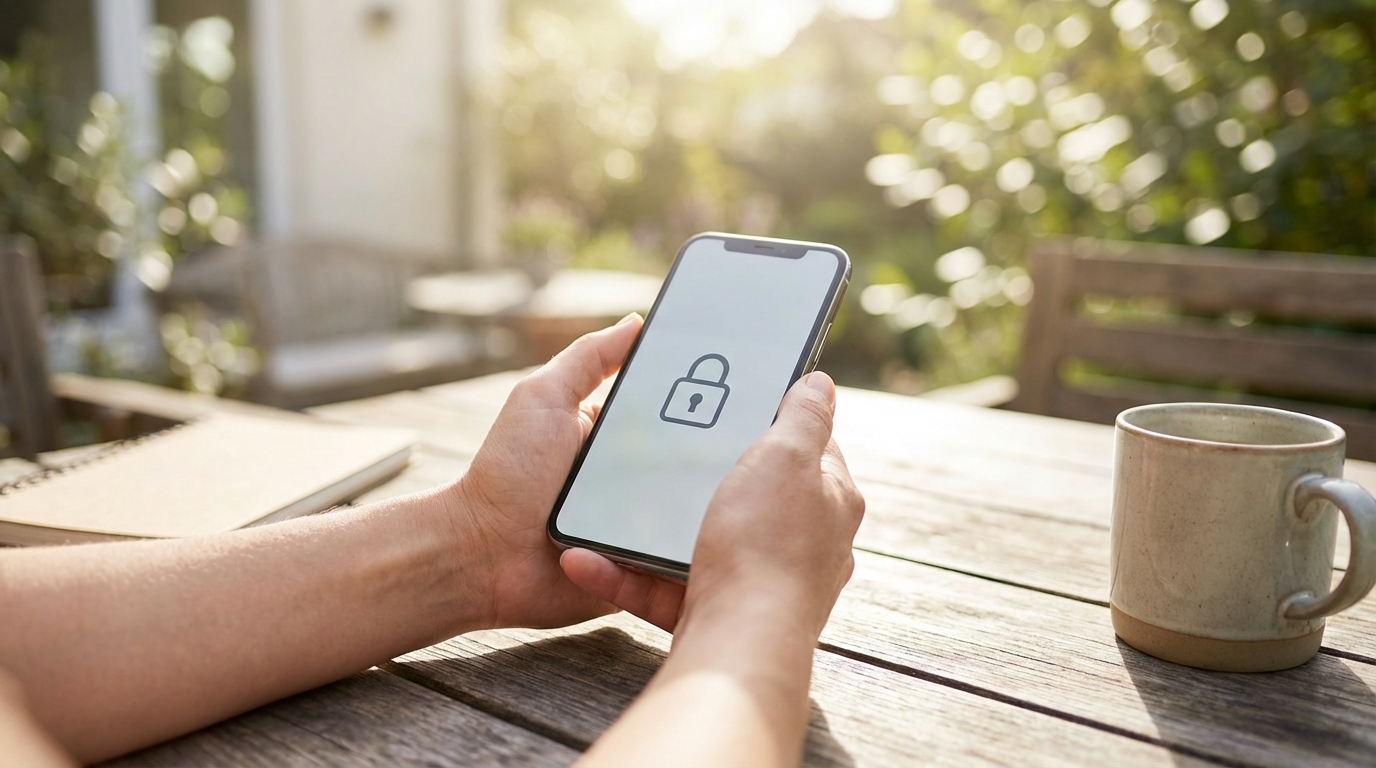
Smartphones carry private messages, photos, payment tools, and access to online accounts, which makes simple safety settings very important. Many people think phone security is complex, but modern devices include clear options that can be turned on in minutes. These settings work quietly in the background and reduce the chance of data loss, tracking, or misuse. Understanding how they help can make everyday phone use feel more confident and controlled.
Lock Screen Protection as the First Line of Defense
The lock screen is the most basic but most powerful safety feature on a phone. It controls who can access the device when it is picked up, lost, or stolen. Without a strong lock screen, every other security setting becomes less effective. Turning on and properly configuring lock screen options creates a strong foundation for overall phone safety.
Choosing a Strong Screen Lock
Most phones offer several lock options, including PINs, passwords, patterns, fingerprints, and face recognition. A longer PIN or password is harder to guess than a short one, and combining numbers with letters adds even more protection. Biometric options like fingerprints and face scans add convenience while still keeping the device secure. Using at least one strong method reduces the risk of unauthorized access.
Setting Auto-Lock Timing
Auto-lock determines how quickly a phone locks after the screen turns off. Shorter auto-lock times reduce the chance that someone else can access the device if it is left unattended. Many phones default to longer times for convenience, but adjusting this setting improves safety with little effort. Even a one-minute auto-lock can make a meaningful difference.
Keeping the Operating System Up to Date
Operating system updates are not just about new features or design changes. They often fix security weaknesses that attackers could use to access data. Delaying updates leaves phones exposed to known risks that are already understood by cybercriminals. Turning on automatic updates ensures these fixes are applied as soon as they are available.
Phones that stay current are better protected against malware and system-level attacks. Updates also improve how security features work together across the device. Even older phones benefit from updates when they are available, making this one of the easiest ways to improve safety. Regular updates require little attention once the setting is enabled.
Managing App Permissions Carefully
Apps often request access to features like location, camera, microphone, and contacts. These permissions are sometimes necessary, but they should match the app’s purpose. Reviewing and adjusting permissions helps limit how much personal data apps can collect. This control reduces privacy risks without affecting normal phone use.
Location Access Controls
Location data can reveal daily routines, home addresses, and travel habits. Many phones allow location access only while an app is in use instead of all the time. Choosing this option limits background tracking and still supports useful features like maps and ride services. Periodic reviews help catch apps that no longer need location access.
Camera and Microphone Permissions
The camera and microphone can expose very private moments if misused. Phones now allow users to approve access only when an app is active. Some systems also show indicators when these sensors are being used. These simple settings make it easier to notice and prevent unwanted access.
Using Network Security Settings
Network connections are common entry points for digital threats. Public Wi-Fi and wireless features can expose data if not handled carefully. Built-in network settings help reduce these risks without requiring technical knowledge. Turning them on improves safety in everyday situations.
Safer Wi-Fi Behavior
Many phones can warn users before connecting to unsecured Wi-Fi networks. Disabling automatic connection to open networks prevents accidental exposure. Some devices also randomize hardware addresses to reduce tracking on public Wi-Fi. These small changes make browsing and app use safer outside the home.
Bluetooth and Nearby Connections
Bluetooth is useful but can be exploited if left on all the time. Turning it off when not in use reduces the chance of unwanted connections. Some phones also limit device visibility to known contacts or paired devices. These options maintain convenience while lowering risk.
Strengthening Account Protection on the Device
Phones are deeply tied to online accounts such as email, app stores, and cloud services. Protecting these accounts is just as important as protecting the device itself. Built-in settings make it easier to add extra layers of security. These layers help prevent account takeovers.
Two-Factor Authentication Settings
Two-factor authentication adds a second step when signing in, such as a code or confirmation prompt. Even if a password is stolen, this extra step can block access. Many phones integrate this feature directly into system accounts. Turning it on greatly improves account safety with minimal effort.
Managing Saved Passwords
Modern phones often include password managers that store and suggest strong passwords. Using these tools reduces the habit of reusing weak passwords across apps. Some managers also alert users when a password may have been exposed. This built-in support improves security without requiring extra apps.
Privacy Controls That Reduce Tracking
Privacy settings help limit how much personal information is shared with apps and advertisers. These controls do not usually affect basic phone functions. They quietly reduce data collection in the background. Reviewing them once can improve long-term privacy.
Ad Personalization Settings
Phones allow users to limit or reset advertising identifiers. This reduces how much ads are tailored based on behavior. While ads still appear, they are less connected to personal activity. Adjusting this setting takes only a few taps.
App Activity and Usage Data
Some systems track how often apps are used to improve recommendations. Users can review and limit this data collection. Reducing activity tracking lowers the amount of stored personal behavior. This setting helps keep phone usage more private.
Backing Up Data Securely
Backups protect data from loss due to damage, theft, or software problems. Phones often include automatic backup options to cloud services or local storage. Enabling backups ensures photos, contacts, and settings can be restored. This safety net reduces stress during unexpected situations.
Secure backups are usually encrypted, meaning the data is protected during storage. Checking that backups are active and linked to the correct account is important. Some phones allow backups only when connected to Wi-Fi to save data. These options balance safety with convenience.
Using Find My Device Features
Find My Device tools help locate, lock, or erase a phone if it is lost. These features are built into most modern smartphones. They work quietly in the background once turned on. Activating them increases the chance of recovery or data protection.
If a phone cannot be recovered, remote erase options protect personal information. Location tracking also helps users see the last known position of the device. These tools provide peace of mind without affecting daily use. Keeping them enabled is a simple but powerful safety step.
Emergency and Safety Features
Phones include emergency settings designed to help during urgent situations. These features can share location or contact emergency services quickly. Setting them up ahead of time ensures they work when needed. They also protect personal safety beyond digital security.
Emergency contacts can be accessed even from the lock screen on many devices. Medical information can also be displayed for first responders. These settings do not expose sensitive data to regular users. They focus on safety while maintaining privacy.
Managing Notifications on the Lock Screen
Lock screen notifications can reveal messages, codes, or personal details. Adjusting what appears on the lock screen improves privacy. Many phones allow hiding sensitive content until the device is unlocked. This setting prevents information leaks in public spaces.
Notification controls can be set per app, giving users flexibility. Banking or messaging apps can be restricted while others remain visible. These small changes reduce risk without missing important alerts. Reviewing notification settings is a quick safety improvement.
App Installation and Download Controls
Where apps come from matters for phone safety. Official app stores review apps for harmful behavior, while unknown sources carry higher risk. Phones include settings that block installations from untrusted sources. Keeping this restriction on prevents accidental exposure to malicious apps.
Some systems also scan apps after installation for unusual behavior. These scans run automatically and require no extra action. Disabling unnecessary installation permissions reduces attack opportunities. This simple control keeps the app environment safer.
Screen Time and Usage Limits
Screen time settings are often seen as tools for balance, but they also support safety. Limiting app usage reduces exposure to risky apps or content. These controls are especially helpful for shared or family devices. They encourage mindful phone use.
Usage limits can require a passcode to extend access. This adds an extra layer of protection against unauthorized use. Screen time reports also help identify unusual activity. These insights support both safety and healthy habits.
Protecting Payment and Wallet Features
Phones increasingly replace physical wallets, making payment security important. Built-in wallet apps use device-level security like biometrics. Turning on these protections ensures payments cannot be made without approval. This reduces financial risk if the phone is lost.
Transaction alerts and spending notifications add another layer of awareness. Users can quickly spot unauthorized activity. These features are usually enabled through simple toggles. Together, they make mobile payments safer.
Using Simple Safety Checklists
Phone safety settings can feel overwhelming when viewed all at once. Breaking them into small checklists makes them easier to manage. Many devices offer built-in security dashboards that highlight important options. These tools guide users through simple improvements.
A typical checklist may include reviewing lock screen, permissions, updates, and backups. Completing these steps once covers many common risks. Periodic reviews keep settings current as apps and features change. This approach makes long-term safety manageable.
- Enable a strong lock screen with a short auto-lock time.
- Turn on automatic operating system updates.
- Review app permissions for location, camera, and microphone.
- Activate Find My Device and backup features.
- Limit lock screen notifications and ad tracking.
Each item on this list can usually be completed in minutes. Together, they form a strong safety baseline for any smartphone. None of these steps require technical expertise or extra tools. Consistent use of these settings quietly improves phone security every day.